How to back up scanned family photos so they actually survive
A scan is not a backup. Here is the copy-in-three-places rule conservators and IT people actually agree on, which cloud services quietly compress your photos, and why the drive in the drawer will fail eventually.
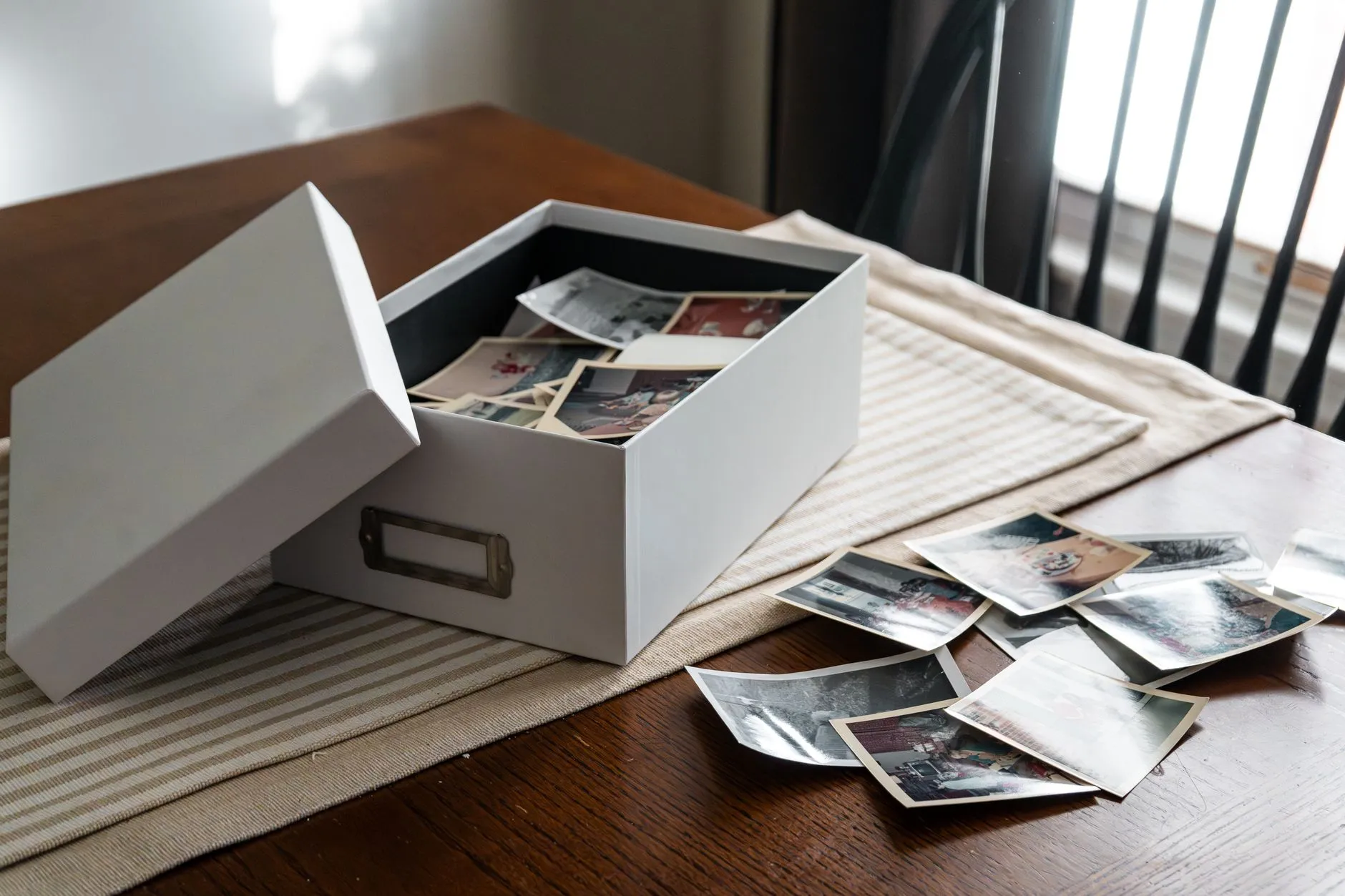
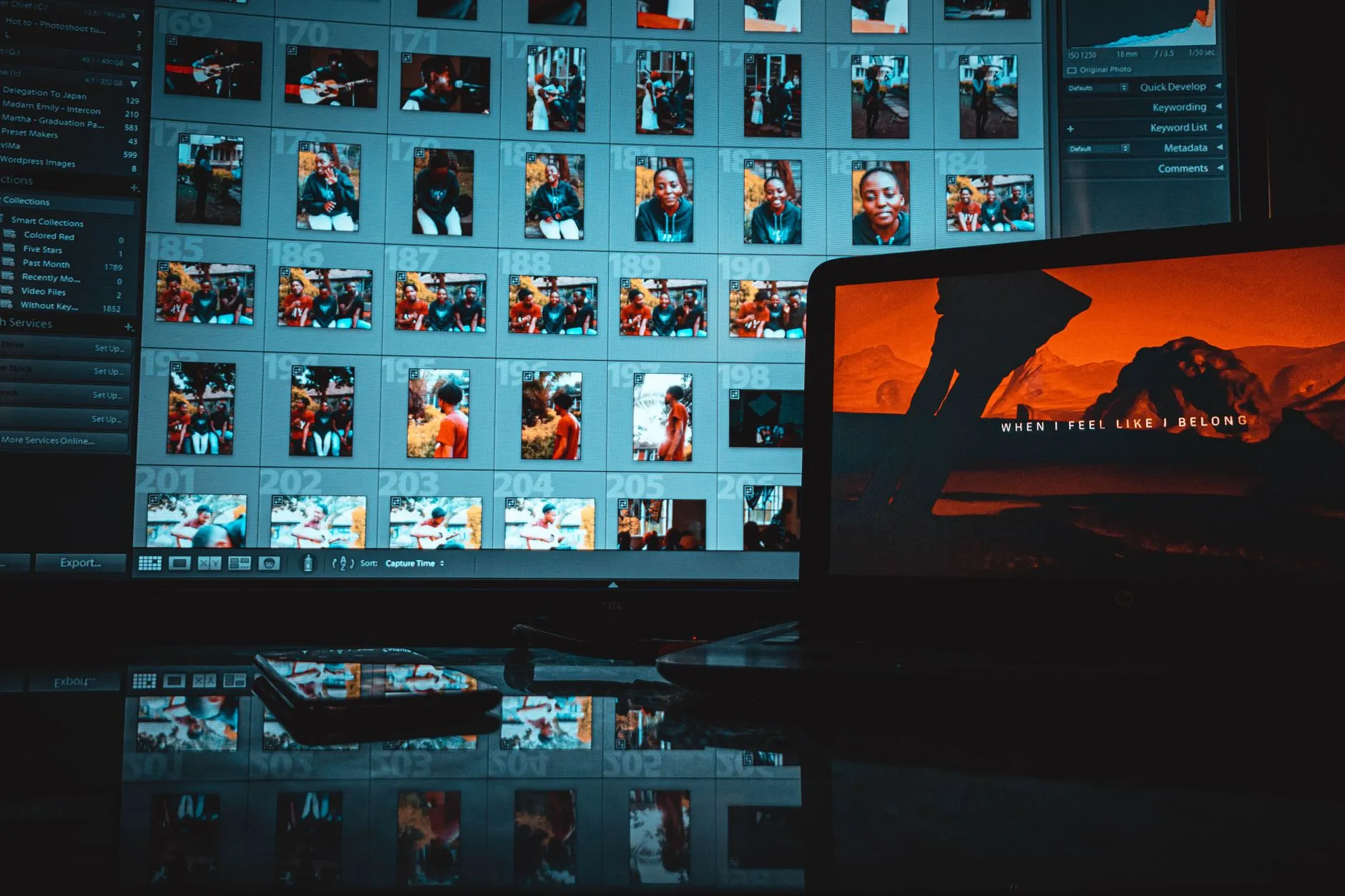
You did the hard part. The box came out of the attic, you fed a few hundred prints through a scanner over several weekends, and now they exist as files. It feels finished. It is not.
A scan on the computer you scanned it on is not a backup, it is a single copy with extra steps. Everything that could destroy the original print, fire, flood, theft, a dropped box, can also destroy a hard drive sitting in the same house. The scanning was the slow part. The backup is the part that actually determines whether any of this survives you.
The rule: three copies, two kinds of storage, one somewhere else
Archivists and IT departments arrived at the same answer from different directions, usually called the 3-2-1 rule:
- Three copies of every file that matters, including the one you are actively using.
- Two different kinds of storage, so a single flaw does not take out everything at once. A laptop drive and an external drive both being the same brand from the same batch is weaker than it looks.
- One copy somewhere other than your house. A cloud account, a drive at a relative’s place, a safety deposit box. This is the copy that survives the disaster that gets the other two.
That third copy is the one people skip, and it is the one that matters most, because it is the only copy immune to the thing that destroys your house. Fire, flood, and theft do not respect how many hard drives you own if they are all in the same room.
What actually counts as “a copy”
Not all storage is equal, and knowing the weaknesses of each helps you pick a real mix rather than three copies that all share the same failure mode.
Your computer’s internal drive. Convenient, and the first thing that dies with the laptop if it is stolen, dropped, or drowned in coffee. Fine as copy one. Never your only copy.
An external hard drive. Cheap and large, which makes it the natural home for a big photo archive. Drives fail without much warning, and a drive that has sat unused in a drawer for two years is not more reliable for having rested, it can fail the moment you plug it back in. If you use one, plug it in every few months and actually open a few files to confirm it still reads.
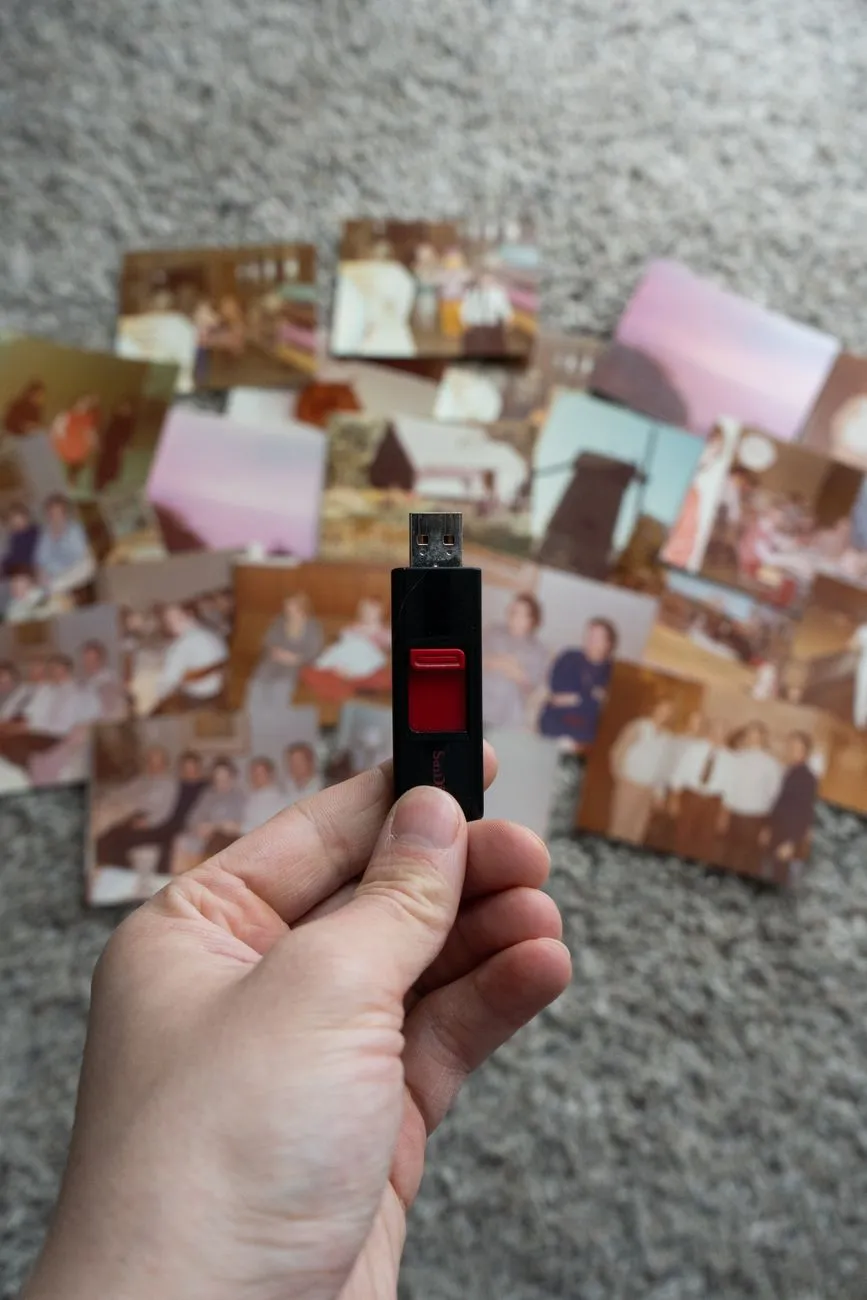
A USB flash drive. Fine for moving files around, not a serious long-term archive strategy on its own. They are small enough to lose, and cheaper flash memory degrades faster than a hard drive’s.
Cloud storage. Genuinely good as one of your copies, with a real caveat worth reading twice. Google Photos and similar free tiers compress images to save space unless you explicitly choose the original-quality or full-resolution option, and that setting is easy to miss during signup. A compressed backup of a photo you already compromised somewhat by scanning is not the archival copy you think it is. Check the setting, and prefer a plan that states plainly that it stores files unmodified.
Optical discs. Largely obsolete now, and this is one recommendation that has genuinely changed. If you have old backup DVDs, treat them as urgent to migrate off, not as a long-term home.
A workable real-world combination: the working folder on your computer, an external drive kept in the house, and a paid cloud account set to original quality. That satisfies three copies, two kinds of storage, and one off-site, without anything exotic.
Naming and organising, so future-you can find anything
A backup you cannot search through is a backup you will not trust. Two habits do most of the work.
Name files with dates and context, not camera defaults. IMG_4021.jpg tells nobody
anything in ten years. 1978-family-christmas-lounge-room.jpg tells you what it is even if
every piece of software that currently organises your library is long gone. You do not need
to rename every file by hand. Batch renaming tools in most photo software can add a
consistent prefix to a whole folder in one pass.
Keep the folder structure boring and by decade or event, not by whatever tagging system felt clever at 11pm. A future relative who inherits this archive, and eventually one will, needs to be able to make sense of it with no explanation from you. Simple folders beat a clever database that nobody else knows how to open.
The original scan is the one file you cannot get back
If you take one thing from this, take this: back up the raw, unedited scan before you do anything else to it. Restoration, colour correction and cropping can all be redone as many times as you like, by better tools next year, because the source material still exists. None of that is true in reverse. If a print has since faded further, or was thrown out after scanning, or a house fire took the original, that first scan is the only version of that photograph left in the world.
If a print has visible damage that made you hesitate to scan it, our guide on how to fix scratches on old photos covers what digital repair can actually recover, but it can only work from a scan that exists. Do the scan first, worry about the repair second.
For a rough idea of how much storage space a backup plan needs to hold, our scan output calculator shows the file size a given print produces at a given resolution, which is useful before you commit to a cloud plan or buy a drive that turns out to be too small for the whole collection.
Test the backup, not just the plan
A backup nobody has opened since the day it was made is a belief, not a backup. Twice a year, actually open a handful of files from each copy, the external drive, the cloud account, wherever your third copy lives, and confirm they open and look right. This takes minutes and it is the single step that turns “I backed this up” from a hope into a fact.
It is also worth writing down, somewhere a family member would find it, where the backups are and how to access them. An archive nobody else knows exists is not much better than no archive at all if something happens to you.
What this looks like in practice
You do not need a server rack in a spare room. For most family collections, this is enough:
- Scan at a resolution that will still be worth having in twenty years. Our guide on what DPI to scan old photos at covers the numbers for different print sizes.
- Keep the untouched scans in one clearly named folder on your main computer.
- Copy that folder to an external drive, and check the drive still reads every few months.
- Sync or upload the same folder to a paid cloud account set to original quality.
- Tell one other person where all of this lives.
None of these steps is difficult on its own. What defeats most people is treating step two as the finish line. It is the start.
The photographs survived a house, a move, and several decades in a shoebox to reach you. A backup plan is the cheapest, least glamorous thing you can do to make sure they survive you too.
If the originals are still sitting in a box while you plan all this, our guide on how to store old photographs covers keeping them safe in the meantime, so nothing gets worse while the digital side catches up.
Common questions
- Is one external hard drive enough to back up scanned family photos?
- No. One drive is a single point of failure: drop it, and it can fail all at once, or in the case of a house fire or flood, along with the originals it was meant to protect. Treat any single drive as temporary storage, not a backup, until a second and a third copy exist somewhere else.
- Is Google Photos or iCloud a real backup?
- It is one good copy, provided you are on a paid plan that keeps full resolution. Both services compress images on their free tiers unless you turn on original quality, which quietly throws away detail without asking. Cloud storage is an excellent second or third copy. It should not be the only one, because accounts get locked, subscriptions lapse, and companies change their terms.
- How long do external hard drives actually last?
- There is no fixed number, but drives fail without warning rather than gracefully, often within a handful of years of regular use and sometimes on the very first plug-in of a drive that has sat in a drawer. Treat every drive as something that could die today, which is the whole reason a single drive is never the plan.
- Should I back up the original scans or the restored versions?
- Both, but the original, untouched scan matters more. It is the one file you cannot recreate if it is lost, since it came from a physical print that may have since faded further or been thrown out. Restored and edited copies can always be redone from the original scan. The original cannot be redone from anything.